In today’s interconnected world, a stable and reliable Wi-Fi connection is not a luxury, but a necessity. Whether you’re working from home, streaming your favorite shows, or engaging in online gaming, a sputtering or non-existent Wi-Fi connection can be incredibly frustrating. At the heart of this connectivity often lies your PC’s Wi-Fi card, a crucial component that, like any hardware, can encounter its fair share of issues. This article delves into common Wi-Fi card problems and provides a comprehensive, step-by-step guide to troubleshooting them, empowering you to regain your digital connection.
Understanding the Wi-Fi Card and Its Role
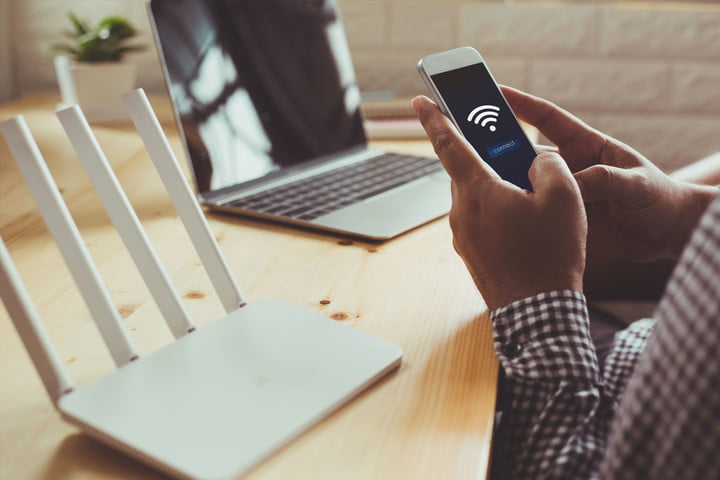
Before we dive into troubleshooting, it’s essential to understand what a Wi-Fi card is and why it’s so important. A Wi-Fi card, also known as a wireless network adapter or WLAN adapter, is a piece of hardware that enables your computer to connect to a wireless network. It translates digital data into radio waves that can be transmitted and received by your router, and vice versa. These cards can be integrated directly onto your motherboard (onboard Wi-Fi) or be a separate expansion card (PCIe card) or a USB dongle.
When your Wi-Fi isn’t working, the problem can stem from a multitude of factors, ranging from simple software glitches to more complex hardware failures. Fortunately, most common issues can be resolved with a bit of patience and systematic troubleshooting.
Common Wi-Fi Card Issues and Their Solutions
Let’s explore the most prevalent Wi-Fi card problems and how to tackle them:
1. Wi-Fi Not Showing Up or Not Connecting
This is perhaps the most frequent complaint. You might not see any available Wi-Fi networks, or you might be unable to connect to your usual network. This can be due to several reasons:
a. Airplane Mode is Enabled
It sounds basic, but it’s a common oversight. Airplane mode disables all wireless communication, including Wi-Fi and Bluetooth.
- Solution: Check your system tray or action center for an airplane mode icon. If it’s on, toggle it off. On Windows, you can usually find this in the Network & Internet settings or by pressing the `Fn` key in conjunction with a function key (often marked with an airplane icon).
b. Wi-Fi Adapter is Disabled
Your Wi-Fi adapter might have been accidentally disabled in the Device Manager or Network Connections settings.
- Solution:
- For Windows: Right-click the Start button and select “Device Manager.” Expand “Network adapters.” Find your Wi-Fi adapter (it will likely have “Wireless” or “Wi-Fi” in its name). Right-click it and select “Enable device.” If it’s already enabled, try right-clicking and selecting “Disable device,” then immediately “Enable device” again to reset it.
- For Windows Network Connections: Right-click the Start button and select “Network Connections.” Right-click your Wi-Fi adapter and ensure it’s not set to “Disabled.”
c. Outdated or Corrupted Drivers
Device drivers are the software that allows your operating system to communicate with your hardware. Outdated or corrupted drivers are a prime suspect for Wi-Fi issues.
- Solution:
- Update Drivers: In Device Manager, right-click your Wi-Fi adapter and select “Update driver.” Choose “Search automatically for drivers.” If Windows finds an update, follow the on-screen instructions.
- Reinstall Drivers: If updating doesn’t work, try uninstalling the driver. Right-click your Wi-Fi adapter in Device Manager, select “Uninstall device,” and check the box that says “Delete the driver software for this device” if available. Then, restart your PC. Windows will usually attempt to reinstall a generic driver upon reboot.
- Manual Driver Installation: For the most reliable solution, visit the website of your PC manufacturer (e.g., Dell, HP, Lenovo) or the Wi-Fi card manufacturer (e.g., Intel, Realtek, Atheros). Navigate to the support or downloads section and search for the latest drivers for your specific model. Download and install them manually.
Case Study: Sarah, a freelance graphic designer, found herself unable to connect to her home Wi-Fi after a Windows update. She tried all the basic steps but still no luck. Upon checking Device Manager, she noticed her Wi-Fi adapter had a yellow exclamation mark. She then manually downloaded the latest driver from her laptop manufacturer’s website, reinstalled it, and her Wi-Fi was back online.
d. Network Troubleshooter
Windows has a built-in troubleshooter that can often diagnose and fix network problems.
- Solution: Go to Settings > Network & Internet > Status. Scroll down and click on “Network troubleshooter.” Follow the prompts.
2. Slow Wi-Fi Speeds

You can connect to Wi-Fi, but the internet is sluggish. This can be incredibly frustrating, especially when you know your internet plan should provide much faster speeds.
a. Router Issues
The problem might not be your PC’s Wi-Fi card at all, but your router.
- Solution:
- Restart Router: The oldest trick in the book, and often the most effective. Unplug your router, wait 30 seconds, and plug it back in. This can clear temporary glitches.
- Router Placement: Ensure your router is in a central, open location, away from physical obstructions like walls, metal objects, and appliances that emit electromagnetic interference (microwaves, cordless phones).
- Channel Congestion: If you live in a densely populated area, your Wi-Fi channel might be congested with other nearby networks. Access your router’s settings (usually by typing its IP address, like 192.168.1.1, into a web browser) and try changing the Wi-Fi channel. Many routers have an “auto” setting, but sometimes manually selecting a less crowded channel can improve performance.
- Firmware Update: Check your router manufacturer’s website for firmware updates. Outdated firmware can lead to performance issues.
b. Distance and Signal Strength
The further you are from the router, the weaker the signal and the slower your speeds will be.
- Solution:
- Move Closer: If possible, try moving your PC closer to the router.
- Wi-Fi Extenders/Mesh Systems: For larger homes or areas with weak signal, consider a Wi-Fi extender or a mesh Wi-Fi system to boost coverage.
c. Interference
Other electronic devices can interfere with your Wi-Fi signal.
- Solution: Identify and move potential sources of interference away from your router and PC. Common culprits include microwaves, Bluetooth devices, cordless phones, and even some older monitors.
d. Too Many Devices Connected
If your network is overloaded with devices, bandwidth will be shared, leading to slower speeds for everyone.
- Solution: Disconnect devices that are not actively in use. Consider upgrading your router to one that supports more devices or a faster Wi-Fi standard (e.g., Wi-Fi 6).
e. Malware or Background Processes
Malware or resource-intensive background applications on your PC can consume bandwidth and slow down your internet.
- Solution:
- Run Antivirus Scan: Perform a full system scan with your antivirus software.
- Check Task Manager: Open Task Manager (Ctrl+Shift+Esc) and go to the “Processes” tab. Look for applications consuming high network bandwidth and close them if they are not essential.
Statistic: According to a study by the Wi-Fi Alliance, Wi-Fi congestion in dense urban environments can reduce speeds by up to 70%.
3. Intermittent Disconnections
Your Wi-Fi disconnects randomly, forcing you to reconnect frequently.
a. Power Management Settings
Windows might be turning off your Wi-Fi adapter to save power.
- Solution: In Device Manager, right-click your Wi-Fi adapter, select “Properties,” go to the “Power Management” tab, and uncheck “Allow the computer to turn off this device to save power.”
b. Router Stability Issues
Your router itself might be unstable or overheating.
- Solution: Ensure your router has adequate ventilation. If it consistently overheats, consider replacing it. Regularly restart your router as mentioned earlier.
c. Faulty Wi-Fi Card or Antenna
In some cases, the Wi-Fi card itself or its antenna might be faulty, leading to intermittent signal drops.
- Solution:
- Check Antenna Connections (for external antennas): If your Wi-Fi card has external antennas, ensure they are screwed in securely.
- Test with another device: Try connecting another device (laptop, smartphone) to the same Wi-Fi network to see if it also experiences disconnections. If other devices are stable, the issue is likely with your PC’s Wi-Fi card.
- Consider a replacement: If all other troubleshooting steps fail and you suspect a hardware issue, you might need to replace the Wi-Fi card. For internal cards, this involves opening your PC. For USB adapters, it’s a simple swap.
4. “No Internet, Secured” or “No Internet, Not Secured” Errors

You are connected to the Wi-Fi network, but there’s no actual internet access.
a. DNS Cache Issues
The Domain Name System (DNS) translates website names into IP addresses. A corrupted DNS cache can cause connectivity problems.
- Solution: Open Command Prompt as administrator (search for “cmd,” right-click, and select “Run as administrator”). Type the following commands, pressing Enter after each one:
- `ipconfig /flushdns`
- `ipconfig /registerdns`
- `ipconfig /release`
- `ipconfig /renew`
Then, restart your PC.
b. Incorrect IP Address or Network Configuration
Your PC might have obtained an invalid IP address from the router.
- Solution: In Network Connections (as described in section 1b), right-click your Wi-Fi adapter, select “Properties,” then select “Internet Protocol Version 4 (TCP/IPv4)” and click “Properties.” Ensure “Obtain an IP address automatically” and “Obtain DNS server address automatically” are selected. If they are already selected, try disabling them temporarily, entering specific (but correct for your network) DNS server addresses (like Google’s 8.8.8.8 and 8.8.4.4), then re-enabling automatic settings.
c. Firewall or Antivirus Interference
Your security software might be blocking internet access.
- Solution: Temporarily disable your firewall and antivirus software to see if the issue is resolved. If it is, you’ll need to reconfigure your security software to allow internet access for your Wi-Fi connection. Remember to re-enable them afterward.
5. Wi-Fi Card Not Detected at All
Your PC doesn’t even recognize that a Wi-Fi card is present.
a. Physical Connection Issues (for internal cards)
If you have an internal PCIe Wi-Fi card, it might have become loose.
- Solution: This requires opening your PC. **Proceed with caution and only if you are comfortable.** Power off your PC completely, unplug it, and discharge any static electricity by touching a grounded metal object. Open the PC case and ensure the Wi-Fi card is firmly seated in its PCIe slot. If it has external antennas, check their connections.
b. BIOS/UEFI Settings
The Wi-Fi adapter might be disabled in your PC’s BIOS/UEFI settings.
- Solution: Restart your PC and enter the BIOS/UEFI setup utility (usually by pressing keys like `Del`, `F2`, `F10`, or `F12` during startup). Look for settings related to “Onboard Devices,” “Integrated Peripherals,” or “Wireless.” Ensure your Wi-Fi adapter is enabled.
c. Hardware Failure
In rare cases, the Wi-Fi card may have failed entirely.
- Solution: If you’ve exhausted all other troubleshooting steps, especially if your PC is older, the Wi-Fi card might be dead. Consider replacing it with a new one, either an internal PCIe card or a USB Wi-Fi adapter.
Preventative Measures for a Smoother Wi-Fi Experience
While troubleshooting is essential, a proactive approach can prevent many issues:
- Keep Drivers Updated: Regularly check for and install the latest drivers for your Wi-Fi card.
- Maintain Router Firmware: Ensure your router’s firmware is always up-to-date.
- Optimize Router Placement: Position your router in an optimal location to maximize signal strength.
- Secure Your Network: Use strong WPA2 or WPA3 encryption to prevent unauthorized access, which can impact performance.
- Regularly Restart Router: A weekly router restart can go a long way in preventing minor glitches.
- Monitor Network Usage: Be aware of how many devices are connected and what they are doing to avoid overloading your network.
A malfunctioning Wi-Fi card can be a significant source of frustration, but by systematically approaching the problem, most issues can be resolved. From ensuring basic settings are correct and updating drivers to optimizing your router and considering hardware limitations, this comprehensive guide provides the tools to diagnose and fix common Wi-Fi card problems. Remember to tackle issues one by one, starting with the simplest solutions. With a little patience and the knowledge gained from this article, you can get back to enjoying a seamless and reliable internet connection on your PC.
