In today’s increasingly connected world, a stable and fast Wi-Fi connection is no longer a luxury, but a necessity. Whether you’re a gamer seeking low latency, a content creator demanding rapid downloads, or simply someone who wants a seamless browsing experience, the Wi-Fi card in your PC plays a crucial role. However, with a bewildering array of options available, selecting the “right” Wi-Fi card can feel like navigating a digital labyrinth. This comprehensive guide will equip you with the knowledge to make an informed decision, ensuring your PC connects to the internet with optimal performance and reliability.
Understanding the Fundamentals: What is a Wi-Fi Card?
Before diving into the intricacies of choosing a Wi-Fi card, it’s essential to understand its fundamental purpose. A Wi-Fi card, also known as a wireless network adapter or Wi-Fi adapter, is a hardware component that allows your computer to connect to a wireless network (Wi-Fi) without the need for an Ethernet cable. It translates data into radio waves for transmission and receives radio waves, converting them back into data your computer can understand.
Wi-Fi cards can come in various forms:
- Internal PCIe Cards: These are installed directly into a PCIe slot on your PC’s motherboard. They generally offer the best performance and stability due to a direct connection to the system.
- USB Wi-Fi Adapters: These are external devices that plug into a USB port. They are convenient and easy to install, making them ideal for laptops or PCs where internal expansion is limited.
- M.2 Wi-Fi Modules: Found in some modern motherboards and laptops, these small modules are similar to internal cards but use the M.2 slot.
Key Factors to Consider When Choosing a Wi-Fi Card
Navigating the Wi-Fi card market requires an understanding of several critical factors that directly impact performance, compatibility, and future-proofing. Let’s break them down:
1. Wi-Fi Standards: The Evolution of Wireless Connectivity

Wi-Fi standards, defined by the IEEE 802.11 standard, dictate the speed, range, and features of wireless networks. The most prevalent standards today are:
- Wi-Fi 5 (802.11ac): While older, it still offers respectable speeds, especially on the 5GHz band, with theoretical maximums reaching several gigabits per second.
- Wi-Fi 6 (802.11ax): This is the current generation and represents a significant leap forward. Wi-Fi 6 offers improved efficiency, higher speeds, better performance in crowded environments (like apartments with many nearby networks), and lower latency. It utilizes technologies like OFDMA (Orthogonal Frequency-Division Multiple Access) and MU-MIMO (Multi-User, Multiple-Input, Multiple-Output) more effectively.
- Wi-Fi 6E (802.11ax on 6GHz): This is an extension of Wi-Fi 6, adding access to the 6GHz spectrum. This new band is less congested, leading to even faster speeds and lower latency, especially beneficial for demanding applications.
- Wi-Fi 7 (802.11be): Still emerging, Wi-Fi 7 promises even greater speeds, lower latency, and enhanced reliability through wider channels and advanced modulation techniques. While not widely available in cards yet, it’s worth noting for future-proofing.
Example: If your router supports Wi-Fi 6, purchasing a Wi-Fi 6 card for your PC will allow you to leverage its full potential. Using an older Wi-Fi 5 card with a Wi-Fi 6 router will limit your connection to Wi-Fi 5 speeds.
Statistic: Studies have shown that Wi-Fi 6 can offer up to 40% faster speeds and a 75% reduction in latency compared to Wi-Fi 5 in real-world scenarios, especially in dense network environments.
2. Frequency Bands: Navigating the Airwaves
Wi-Fi operates on different frequency bands, each with its own advantages and disadvantages:
- 2.4GHz Band: Offers a longer range and better penetration through walls and obstacles. However, it’s more susceptible to interference from other devices (microwaves, Bluetooth devices) and generally offers lower speeds.
- 5GHz Band: Provides significantly faster speeds and less interference, making it ideal for high-bandwidth activities like streaming and gaming. However, its range is shorter, and it struggles more with obstructions.
- 6GHz Band (Wi-Fi 6E and Wi-Fi 7): This is the newest and least congested band, offering the highest potential speeds and lowest latency. Its range is similar to or slightly less than 5GHz.
Recommendation: For optimal flexibility and performance, choose a dual-band (2.4GHz and 5GHz) or tri-band (adding 6GHz for Wi-Fi 6E/7) Wi-Fi card. This allows your PC to connect to the most suitable band based on your location and network conditions.
3. Antennas: The Key to Range and Signal Strength
Antennas are crucial for receiving and transmitting Wi-Fi signals. The number and type of antennas on a Wi-Fi card directly impact its range, signal strength, and ability to handle interference.
- Internal Antennas: Often found in USB adapters, these are integrated into the device.
- External Detachable Antennas: Common on PCIe cards, these can often be repositioned or even replaced with higher-gain antennas for improved range and signal.
- Multiple Antennas (MIMO): Wi-Fi cards often feature multiple antennas to support MIMO technology. This allows for simultaneous data streams, increasing throughput and reliability. Look for specifications like “2×2 MIMO” or “3×3 MIMO,” indicating the number of transmit and receive antennas.
Case Study: A user experiencing weak Wi-Fi signals in their gaming room, despite being relatively close to the router, might find that upgrading to a PCIe Wi-Fi card with powerful external antennas significantly improves their connection stability and reduces lag.
4. Speed and Throughput: How Fast is Fast Enough?
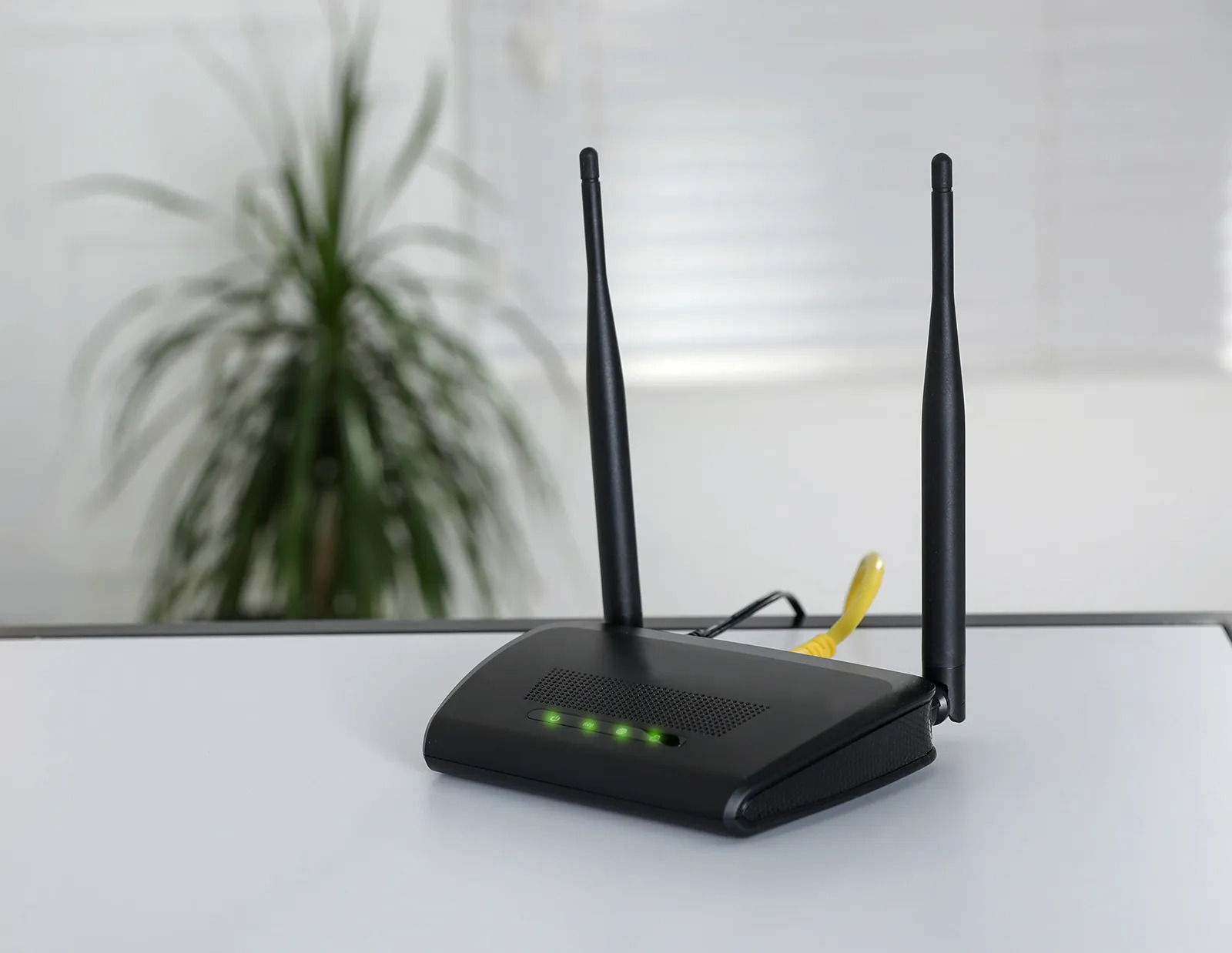
Wi-Fi card specifications often list theoretical maximum speeds. While these are rarely achieved in real-world conditions, they provide a benchmark. Consider your typical internet usage:
- Basic Browsing and Email: Even older standards like Wi-Fi 5 can suffice.
- Streaming HD/4K Video: Wi-Fi 5 or Wi-Fi 6 is generally recommended.
- Online Gaming: Low latency and stable connections are paramount. Wi-Fi 6 or Wi-Fi 6E is highly beneficial.
- Large File Downloads/Uploads: Higher throughput, like that offered by Wi-Fi 6/6E, will significantly reduce transfer times.
Tip: Don’t just look at the theoretical speed. Consider the number of spatial streams (e.g., 2×2, 3×3 MIMO), as this directly impacts real-world performance.
5. PCIe vs. USB: Form Factor and Performance
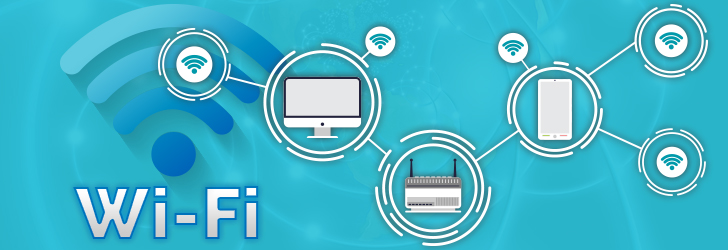
The choice between a PCIe card and a USB adapter often comes down to your PC’s configuration and performance needs:
- PCIe Cards:
- Pros: Generally offer superior performance, lower latency, and more stable connections due to direct integration with the motherboard. They often come with larger, more effective antennas.
- Cons: Require an available PCIe slot on your motherboard, which might be limited in some compact PCs. Installation involves opening your PC.
- USB Adapters:
- Pros: Extremely easy to install, portable, and don’t require opening your PC. Great for laptops or temporary use.
- Cons: Performance can be slightly less than PCIe cards, especially for high-demand applications. The USB port’s bandwidth can sometimes be a bottleneck. Antennas are typically smaller and less effective.
6. Bluetooth Integration: A Convenient Combo
Many modern Wi-Fi cards also include integrated Bluetooth. This can be a great convenience if your PC lacks built-in Bluetooth or if you need a more robust and reliable Bluetooth connection for peripherals like wireless headphones, controllers, or keyboards.
Benefit: Consolidating your wireless needs into a single card can free up USB ports and simplify your setup.
7. Chipset: The Brains of the Operation
The chipset is the integrated circuit that powers the Wi-Fi card. Reputable manufacturers like Intel, Qualcomm Atheros, and MediaTek produce high-quality chipsets known for their reliability and performance. When choosing a card, researching the chipset can provide an indicator of its potential performance and driver support.
8. Driver Support and Updates: Staying Connected

Good driver support from the manufacturer is crucial for optimal performance and stability. Drivers are software that allows your operating system to communicate with the Wi-Fi card. Look for manufacturers that regularly release driver updates to address bugs, improve performance, and enhance compatibility with new operating system versions or Wi-Fi standards.
Navigating Your Options: A Step-by-Step Approach
Now that you understand the key factors, let’s outline a practical approach to choosing your Wi-Fi card:
- Assess Your Router: What Wi-Fi standards does your router support? (e.g., Wi-Fi 5, Wi-Fi 6, Wi-Fi 6E). To get the most out of your router, your Wi-Fi card should ideally support the same or a newer standard.
- Identify Your Needs: What do you primarily use your PC for? Gaming, streaming, general browsing, large file transfers? This will help you prioritize speed, latency, and range.
- Consider Your PC’s Form Factor: Do you have a desktop with available PCIe slots, or are you working with a laptop or a compact PC where a USB adapter might be more practical?
- Determine Your Budget: Wi-Fi cards range in price from budget-friendly USB adapters to high-end PCIe cards supporting the latest standards.
- Read Reviews and Compare: Once you have a shortlist of potential cards, read professional reviews and user feedback to gauge their real-world performance, reliability, and any potential issues.
Popular Wi-Fi Card Brands and Their Strengths
Several reputable brands consistently offer high-quality Wi-Fi cards:
- TP-Link: Known for offering a good balance of performance and value across various Wi-Fi standards.
- ASUS: Often features in enthusiast builds, offering premium performance, advanced features, and robust driver support, especially for their ROG (Republic of Gamers) line.
- Intel: Their Wi-Fi modules are often found pre-installed in laptops and motherboards, known for excellent performance and driver stability.
- Gigabyte: Offers a range of PCIe Wi-Fi cards, often integrated into their motherboards, providing solid performance.
- Netgear: Another established brand offering reliable Wi-Fi solutions, including adapters.
Troubleshooting Common Wi-Fi Issues
Even with the best Wi-Fi card, you might encounter issues. Here are a few common ones:
- Slow Speeds:
- Check if your router is in a good location.
- Ensure your Wi-Fi card and router are on the same Wi-Fi band.
- Update your Wi-Fi card drivers.
- Consider interference from other devices.
- Intermittent Disconnections:
- Verify the stability of your router.
- Check for driver issues or outdated firmware.
- Ensure antennas are securely connected and positioned correctly.
- Device Not Detected:
- Ensure the Wi-Fi card is properly seated (for PCIe) or plugged in (for USB).
- Check Device Manager in Windows for any errors.
- Reinstall the drivers.
Investing in a Seamless Wireless Future
Choosing the right Wi-Fi card for your PC is an investment in your overall digital experience. By understanding Wi-Fi standards, frequency bands, antenna configurations, and your specific needs, you can confidently select a card that provides reliable, high-speed connectivity. Whether you opt for a powerful PCIe card for maximum performance or a convenient USB adapter for ease of use, prioritizing Wi-Fi 6 or Wi-Fi 6E will future-proof your connection and ensure you’re ready for the demands of modern online activities. Don’t underestimate the impact of this small but mighty component – a well-chosen Wi-Fi card can transform your PC’s performance and your enjoyment of the digital world.
